The Dialogue editor is where you do most of the design work for state and flow of your adventures. Here you can see how events will trigger Dialogue options or Quest and Quest Objectives. Most of the design will be done here.
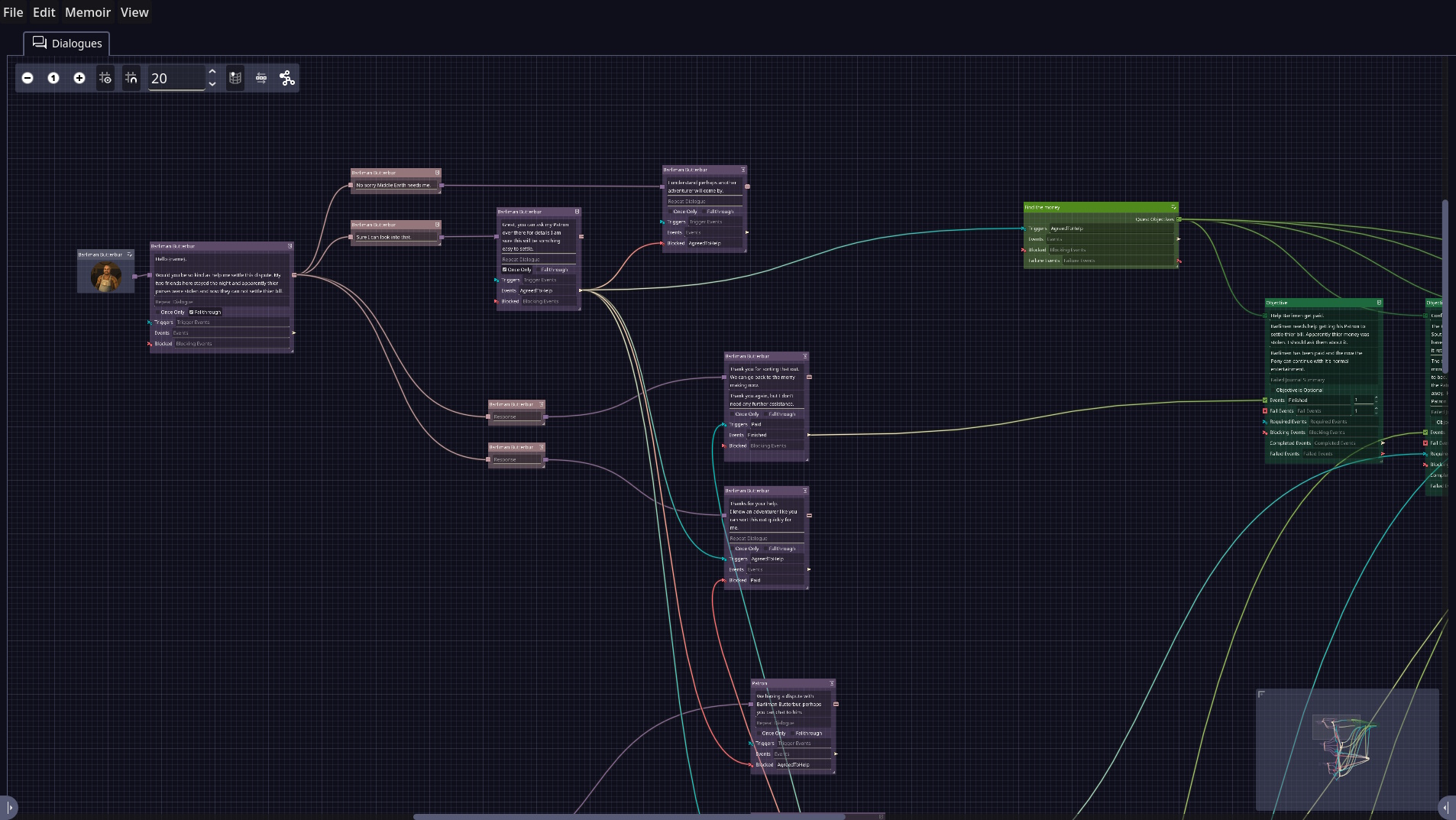
This view may look a little intimidating at first. It is however an easy way to get an overview of how the parts of your quest work together. In the screen shot above you can see the Dialogue for Barliman and the Quest from the Mystery at the Pony memoir.
Navigating and using the View
Single clicking an item will select it. You can also drag and select multiple items.
Once select you can left click and drag items around in the view to better position them.
For NPC’s, Dialogues, Responses, Quests you can drag from there top right button into the view to create new sub items or drag to connect to existing one in the view already.
| Action | Icon | Description |
|---|---|---|
| Zoom |  |
You can zoom in and out with the mouse wheel. Or you can use the zoom bar on the mini tool bar on the top left. |
| Move | 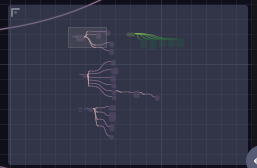 |
You can click with the middle mouse button and drag the view, you can also use the scroll bars on the bottom and right of the view. Lastly you can drag and move the window in the Navigation Map on the bottom right. |
| Grid |  |
You can adjust the display, snapping and size of the grid with these buttons. |
| Map |  |
You can toggle the map display with this button. |
| Auto Align |  |
If you select multiple nodes you can automatically align them with this button. |
| Show Event Lines |  |
This toggles through 3 states for showing the events lines in the view. Off showing no event connectors, Selected where it shows only the event lines of the selected items and all where all event lines are shown. Using this can assist reducing the amount of noise in the view. |
NPC’s, Dialogues and Dialogue Responses
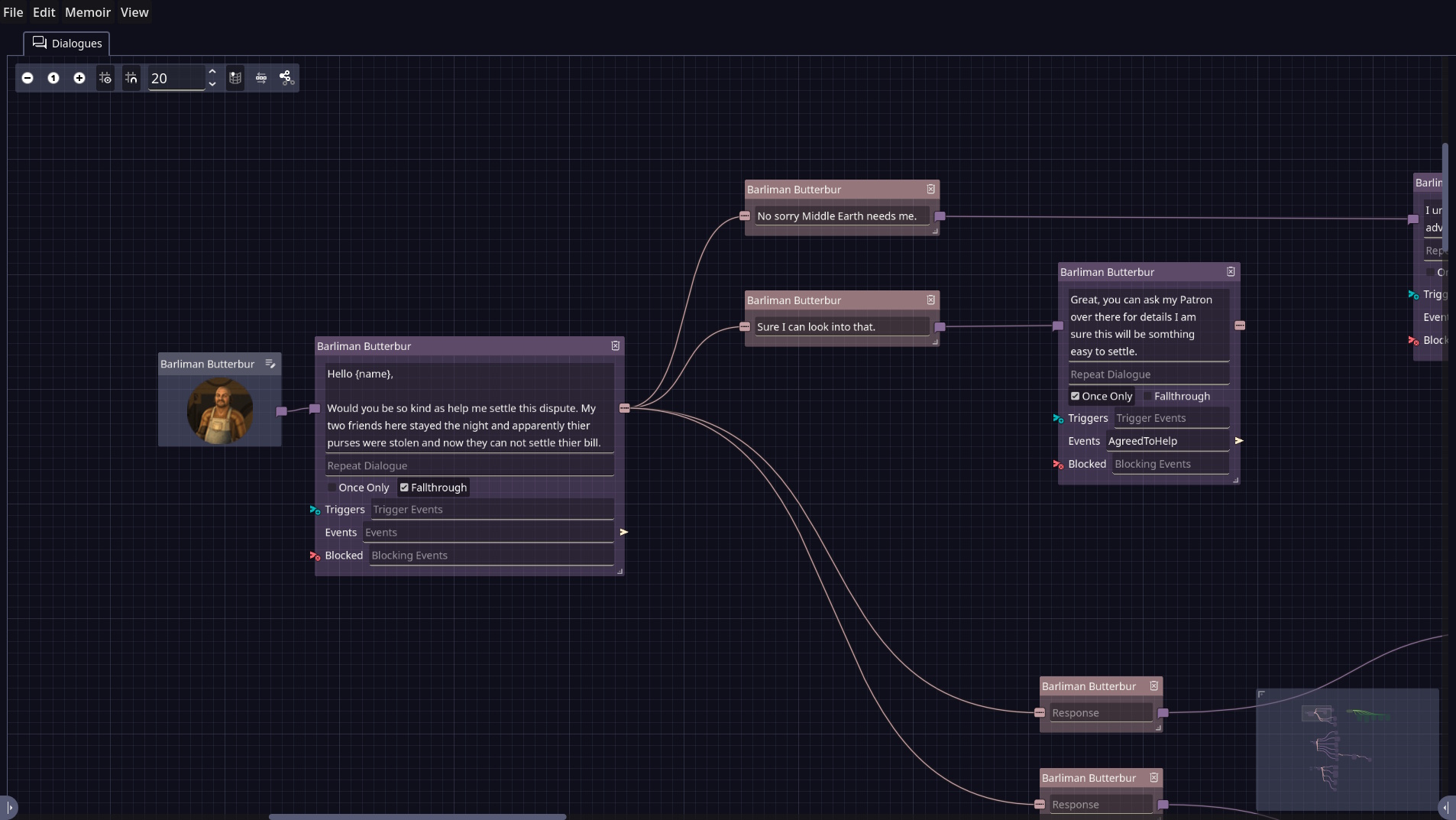
An NPC is connected to its first Dialogue. Dialogues are connected to the responses and those are in turn connected to the Dialogue they lead to.
You can delete Dialogues and Options with the delete icon on the Top Right of each.
You can edit the NPC details by clicking the Edit icon in the Top Right of the NPC Item.
Quests and Objectives
Quests are showing with there respective Objectives. Each quest needs at least one Objective. You create objectives by dragging from the top right of the quest into the view and releasing.
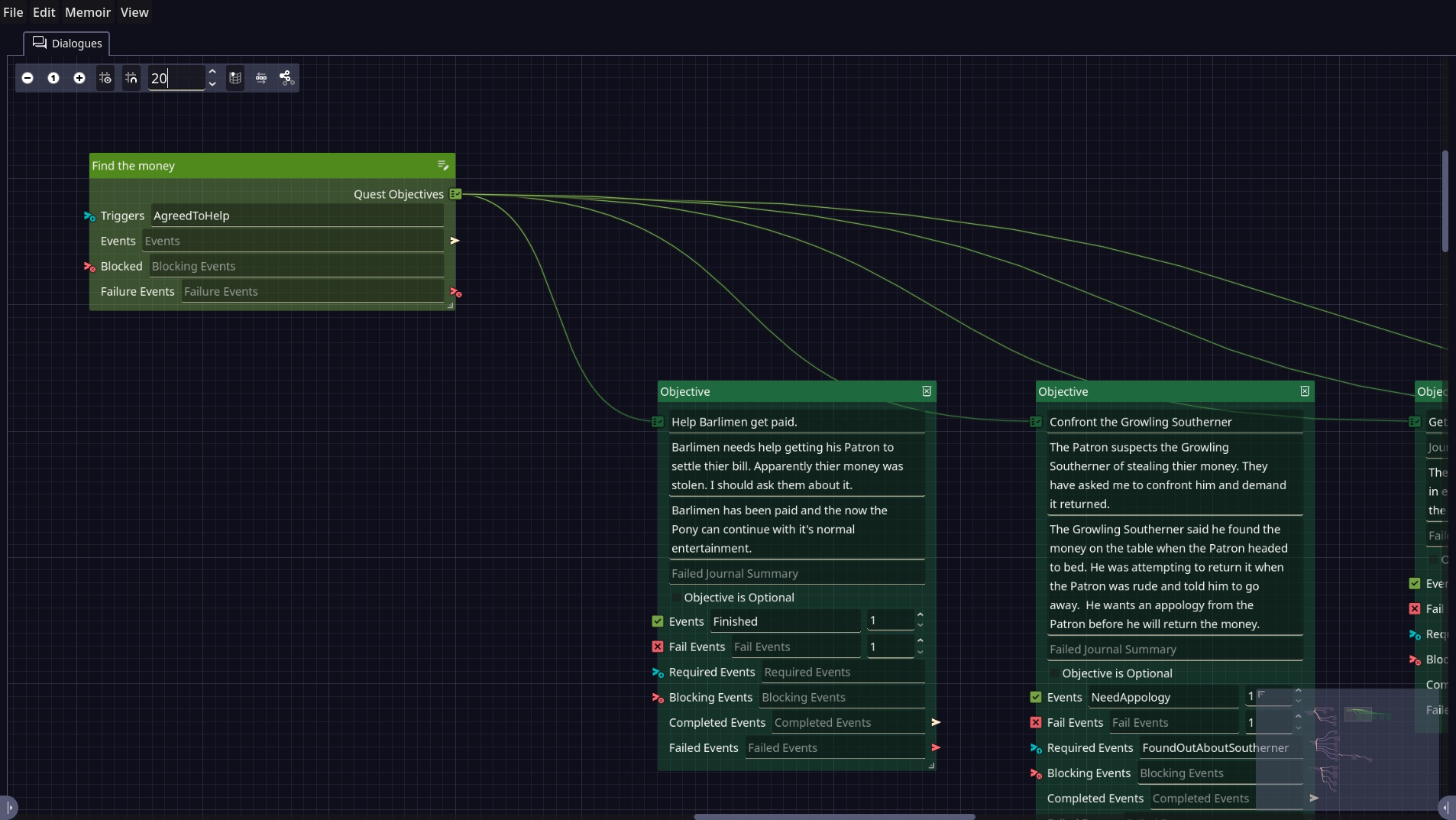
You can delete objectives by clicking the delete icon on the top right of the Objective Item.
You can edit the Quest details by clicking the Edit icon in the Top Right of the Quest Item.
Events
Events are what tie all the parts of a Memoir together. Events can enable, block, progress Objectives and Dialogues. As well as events been fire-able from Dialogues, Quest and Objectives there are also Event Items that are defined in the Events screen allowing.
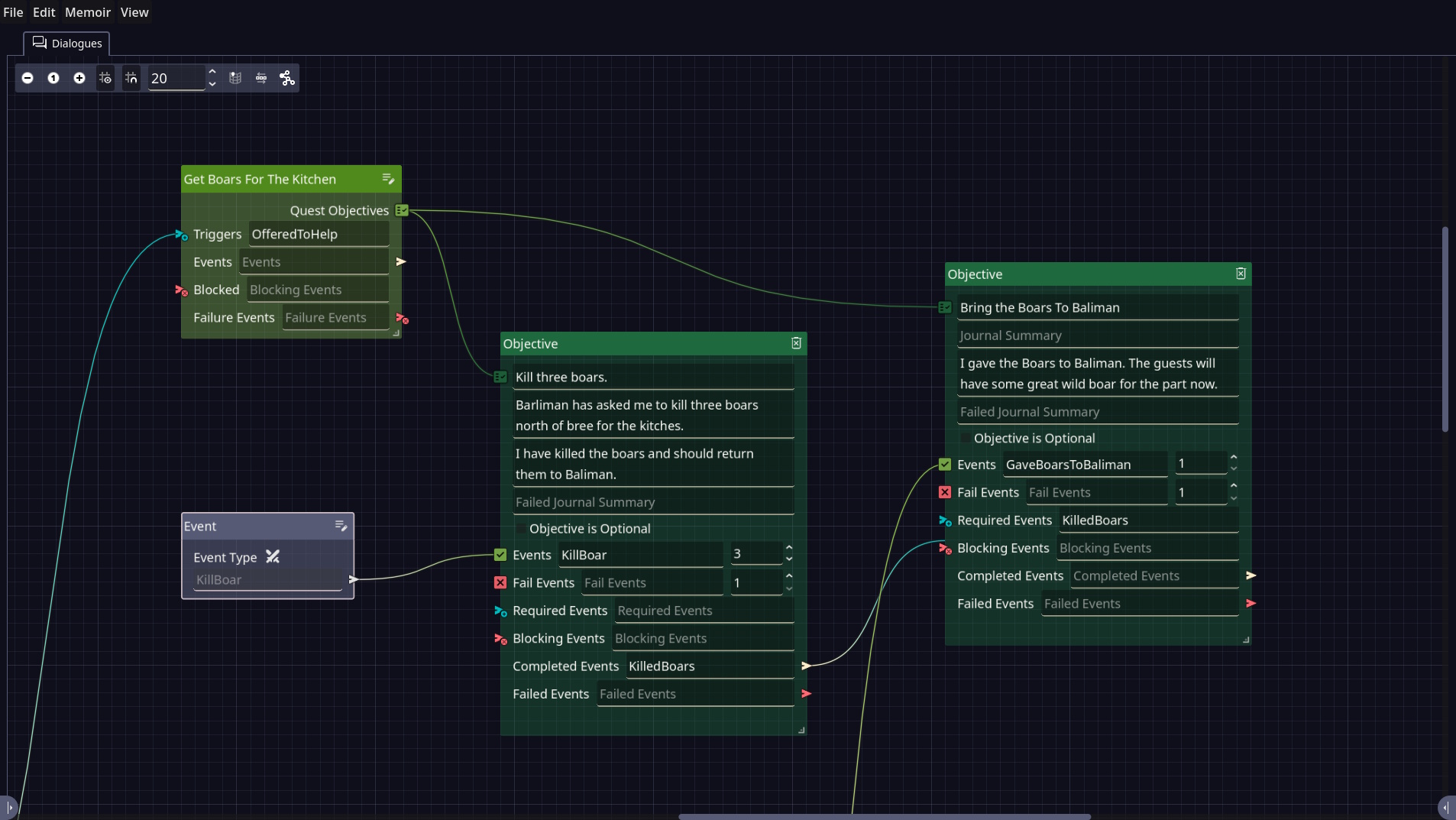
As can be seen in the image above there is a line that comes from a Dialogue below that will trigger the Get Boards from the Kitchen quest.
There is an event for killing boars. You can see it connects to the Quest Objective to Kill 3 Boars in the Events Trigger. This means that each time a Boar is killed that even will count until 3 have been achieved.
The Kill three boars Objective when complete fires the Event KilledBoars that in turn activated the new Objective Bring the Boars to Barliman.
The bring the Boards to Barliman is then completed when a Dialogue is seen by the player and that Dialogue fires the event GaveBoardsToBarliman.
These events are all typed into the various fields. You can list more then one in each by separating them with Commas.
Events can not be linked by dragging from the item ports, They are connected by including the event details in each even entry box.